In this article:
You can lock a form to prevent it from being accidentally modified, renamed, or deleted. This article explains how to protect your important forms and how to unlock them when needed.
What it's for
- Prevent accidental changes to a form that's already finalized or actively in use.
- Prevent a form from being deleted by mistake, whether individually or through a bulk deletion (multi-select).
- Protect a form used in an automation scenario, without interrupting its operation.
- Extend, if desired, the ability to lock or unlock forms to users with custom permissions, in addition to admins.
Before you start
By default, only admins can lock and unlock forms.
Users with custom permissions need the Lock forms permission to perform this action. This permission is disabled by default and must be granted by an admin. See how to manage custom permissions.
Locking a form has no impact on its public preview or on any automation scenarios using it — they continue to work normally.
How it works
Locking a form prevents it from being modified, renamed, or deleted, until it is unlocked. A padlock icon appears below the form's name to indicate that it's protected.
Two actions remain available on a locked form, regardless of user type:
- Duplicate the form
- Get code or Get the URL
Editing, renaming, and deleting are all blocked for all users without exception while a form is locked. For bulk deletion (multi-select), if your selection includes one or more locked forms, a message will let you know those weren't deleted, while the unlocked forms in your selection are deleted as usual.
Step by step
Lock a form
- Go to the Forms menu.
- Find the form you want to protect in the list.
- Click on the actions menu to the right of the form's row.
- Click the Lock option (padlock icon).
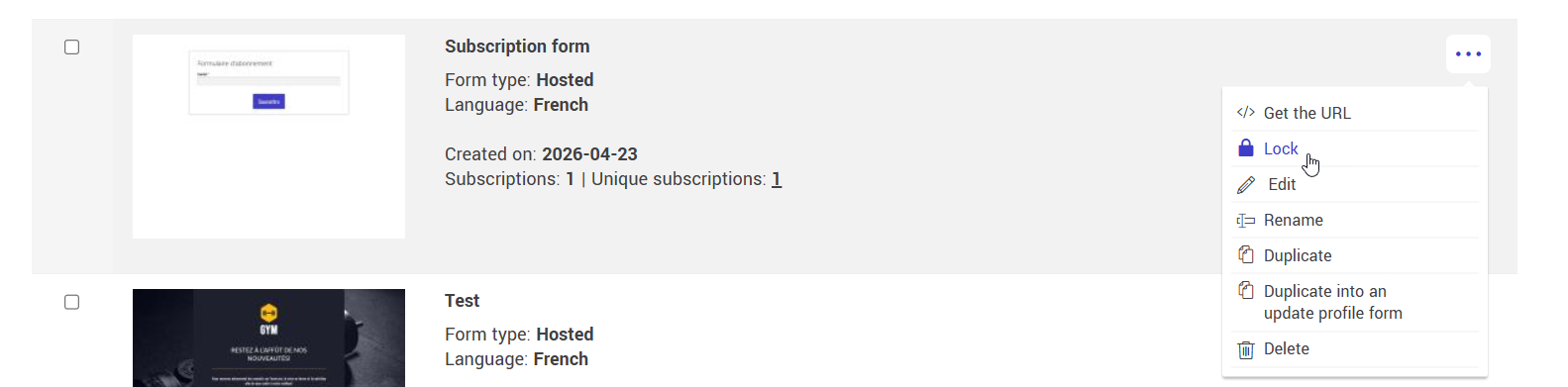
- A padlock icon appears below the form's name, confirming it's now protected.

Unlock a form
- Go to the Forms menu.
- Find the locked form you want to unlock.
- Click the Actions icon (three dots) to the right of the form's row.
- Click the Unlock option (padlock icon).
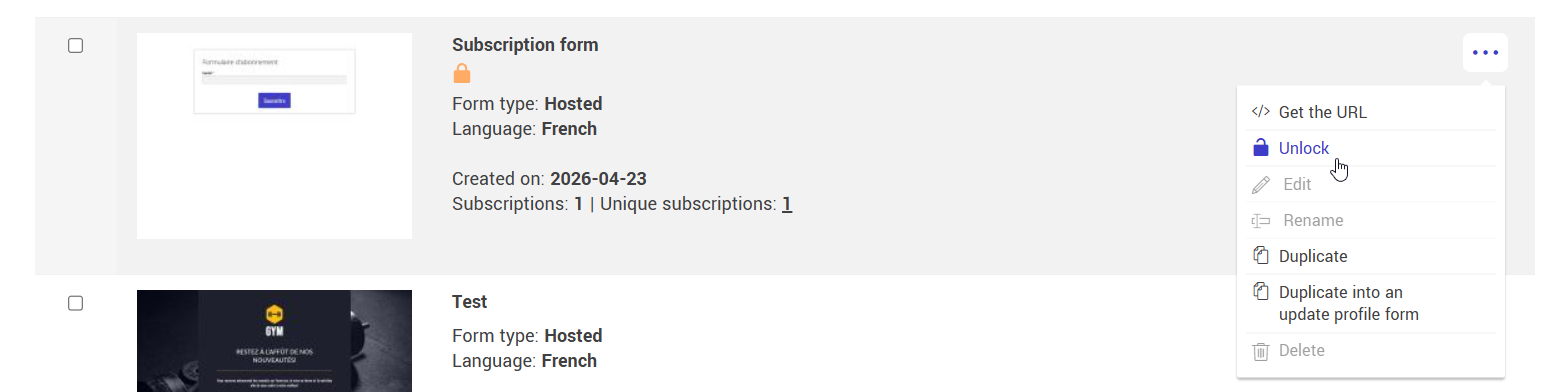
Tips and tricks
I don't see the Lock or Unlock option in the actions menu. Why? This option is only visible to admins. If you're a user with custom permissions, it will only appear if the Lock forms permission has been granted to you by an admin.
Why are the Edit, Rename, or Delete options greyed out? A tooltip appears when you hover over a disabled option, letting you know the form is locked and the action isn't allowed.
Can I still send or duplicate a locked form? Yes. Locking only prevents editing, renaming, and deleting. The Duplicate and Get code or Get the URL actions remain available to all users, regardless of their user type or permissions.
What happens if I select multiple forms, including locked ones, to delete them? The unlocked forms in your selection will be deleted as usual. The locked forms will be kept, and a message will let you know.